> For the complete documentation index, see [llms.txt](https://rez-notify-me.gitbook.io/rez-notify-me/llms.txt). Markdown versions of documentation pages are available by appending `.md` to page URLs; this page is available as [Markdown](https://rez-notify-me.gitbook.io/rez-notify-me/preorder/automatically-hold-preorder-orders-alternative-to-rez-shippings.md).

# Automatically hold Preorder orders (Alternative to REZ Shippings)

Use this workflow when you want Shopify to automatically put an order on fulfillment hold whenever the order contains the tag PREORDER.

### When to use this method?

Use this method when you:

* Want to use payment providers other than **Shopify Payments**
* Want to combine preorders with third-party apps (for example: subscriptions or bundles)

In these cases, you cannot use **Shopify Selling Plans**, which means **REZ Discount**, **REZ Partial Payment**, and **REZ Shipping** are not available.

{% hint style="warning" %}
Make sure you already installed [**Shopify flow**](https://apps.shopify.com/flow) (Native Shopify app and is free to install)
{% endhint %}

<figure><img src="https://694306685-files.gitbook.io/~/files/v0/b/gitbook-x-prod.appspot.com/o/spaces%2FRQjauhlFJIllaMdenmZk%2Fuploads%2FsBPcHUBCAJ9WNKpbznCG%2Fimage_yuxfxw.png?alt=media&amp;token=ec0e3ceb-d123-4dc4-9ea7-535c84e96eb8" alt=""><figcaption><p>We will create a flow like this</p></figcaption></figure>

#### We have full flow setup [tutorial video **available here**](https://drive.google.com/file/d/15It0o1AHevb8zUnIw2HGqCt3kFiWFeBk/view?usp=sharing)

#### Step 1: Add tags for preorder order

<figure><img src="https://694306685-files.gitbook.io/~/files/v0/b/gitbook-x-prod.appspot.com/o/spaces%2FRQjauhlFJIllaMdenmZk%2Fuploads%2FG2w6GpP1selk7vMQfk1Q%2Fimage.png?alt=media&amp;token=ace76c23-90e0-44b2-a6e7-bd3cc6444bb8" alt=""><figcaption></figcaption></figure>

#### Step 2: Open Shopify Flow

* In Shopify Admin → **Apps**
* Open **Shopify Flow** (Native Shopify app and is free to install at <https://apps.shopify.com/flow>)

<figure><img src="https://694306685-files.gitbook.io/~/files/v0/b/gitbook-x-prod.appspot.com/o/spaces%2FRQjauhlFJIllaMdenmZk%2Fuploads%2FlI4EAJhUveQhihxG09mm%2Fimage.png?alt=media&amp;token=163133c3-0b84-4abc-96ce-e71e0bee3a31" alt=""><figcaption></figcaption></figure>

* Click **Create workflow**

#### Step 3: Add Trigger: Order Created

This starts the automation whenever a new order is placed.

Configure:

* **Trigger:** `Order created`

<figure><img src="https://694306685-files.gitbook.io/~/files/v0/b/gitbook-x-prod.appspot.com/o/spaces%2FRQjauhlFJIllaMdenmZk%2Fuploads%2FIAoav31DEHExSi0ih5Xu%2Fimage.png?alt=media&amp;token=ab015fe9-2ac1-4c24-a53c-467cafeb6fb6" alt=""><figcaption></figcaption></figure>

#### Step 4: Add Condition: Check Order Tag

Add a condition > true flow > add variable > search for "order tag" > choose order/tag

<figure><img src="https://694306685-files.gitbook.io/~/files/v0/b/gitbook-x-prod.appspot.com/o/spaces%2FRQjauhlFJIllaMdenmZk%2Fuploads%2FhZUaDRBcxN2TUeJbo9dm%2Fimage.png?alt=media&amp;token=f321ca0a-ab66-4a1a-b44a-80d2cb811e0b" alt=""><figcaption></figcaption></figure>

Add the tag you just added in the Preorder Campaign

<figure><img src="https://694306685-files.gitbook.io/~/files/v0/b/gitbook-x-prod.appspot.com/o/spaces%2FRQjauhlFJIllaMdenmZk%2Fuploads%2FZoyPGQOwIsF4Vq584EKy%2Fimage.png?alt=media&amp;token=ab244777-1739-4718-b787-4c0161ad1b2b" alt=""><figcaption></figcaption></figure>

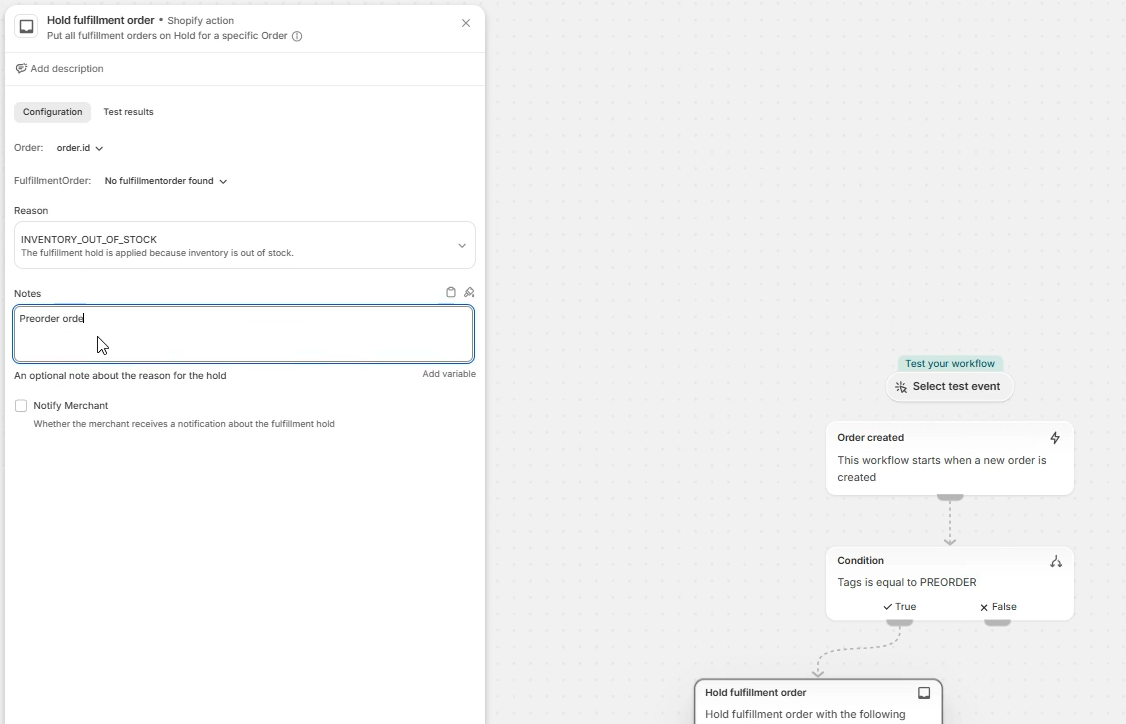
#### Step 5: Add Action: Hold Fulfillment Order

Under the **True** branch:

Add action:

* **Action:** `Hold fulfillment order`

<figure><img src="https://694306685-files.gitbook.io/~/files/v0/b/gitbook-x-prod.appspot.com/o/spaces%2FRQjauhlFJIllaMdenmZk%2Fuploads%2FJCf7u0Q372QGp0t4jQmr%2Fimage.png?alt=media&amp;token=3161d1d1-0b06-4281-93c2-bb525de5d5b6" alt=""><figcaption></figcaption></figure>

Configure:

* **Reason:** INVENTORY\_OUT\_OF\_STOCK
* **Note:** Optional (example: Preorder order)

<figure><img src="https://694306685-files.gitbook.io/~/files/v0/b/gitbook-x-prod.appspot.com/o/spaces%2FRQjauhlFJIllaMdenmZk%2Fuploads%2FY55lHK9utvU6uq7ZVqgR%2Fimage.png?alt=media&amp;token=4a7d1d02-52f2-45cd-bbfe-f31faf1c0921" alt=""><figcaption></figcaption></figure>

#### Step 6: Turn On the Workflow

* Click **Turn on workflow**
* Save changes

<figure><img src="https://694306685-files.gitbook.io/~/files/v0/b/gitbook-x-prod.appspot.com/o/spaces%2FRQjauhlFJIllaMdenmZk%2Fuploads%2Fm1a0TC49a69YwIk0bR1Q%2Fimage.png?alt=media&amp;token=444d9ad5-54dd-411c-a866-f8b2ad904214" alt=""><figcaption></figcaption></figure>

#### Step 6: Test the Workflow

To verify:

1. Create a test order.
2. Add the order tag: **PREORDER**
3. Place the order.
4. Confirm the order appears as **Fulfillment on hold**.

#### Expected behavior

| Order Tags                            | Result                |
| ------------------------------------- | --------------------- |
| `PREORDER`                            | ✅ Fulfillment is held |
| `VIP`                                 | ❌ No action           |
| `PREORDER, VIP` *(if using contains)* | ✅ Fulfillment is held |