> For the complete documentation index, see [llms.txt](https://rez-notify-me.gitbook.io/rez-notify-me/llms.txt). Markdown versions of documentation pages are available by appending `.md` to page URLs; this page is available as [Markdown](https://rez-notify-me.gitbook.io/rez-notify-me/preorder/automatically-release-held-preorder-orders.md).
# Automatically Release Held Preorder Orders
If you have a large number of held fulfillment orders (e.g. after a preorder product comes back in stock), you can use Shopify Flow to automatically release them instead of doing it manually.
{% hint style="info" %}
This workflow processes up to **100 fulfillment orders per run**, so if you have hundreds of orders, simply let it repeat until all orders are released
{% endhint %}
### Step 1: Install Shopify Flow
If you haven't already, install the [**Shopify Flow**](https://apps.shopify.com/flow) app from the Shopify App Store.
### Step 2: Create a New Workflow
1. Open **Shopify Flow**.
2. Click **Create workflow**.
3. Our flow will look like this
### Step 3: Configure the Trigger
1. Select the trigger:
* **Flow → Scheduled time**
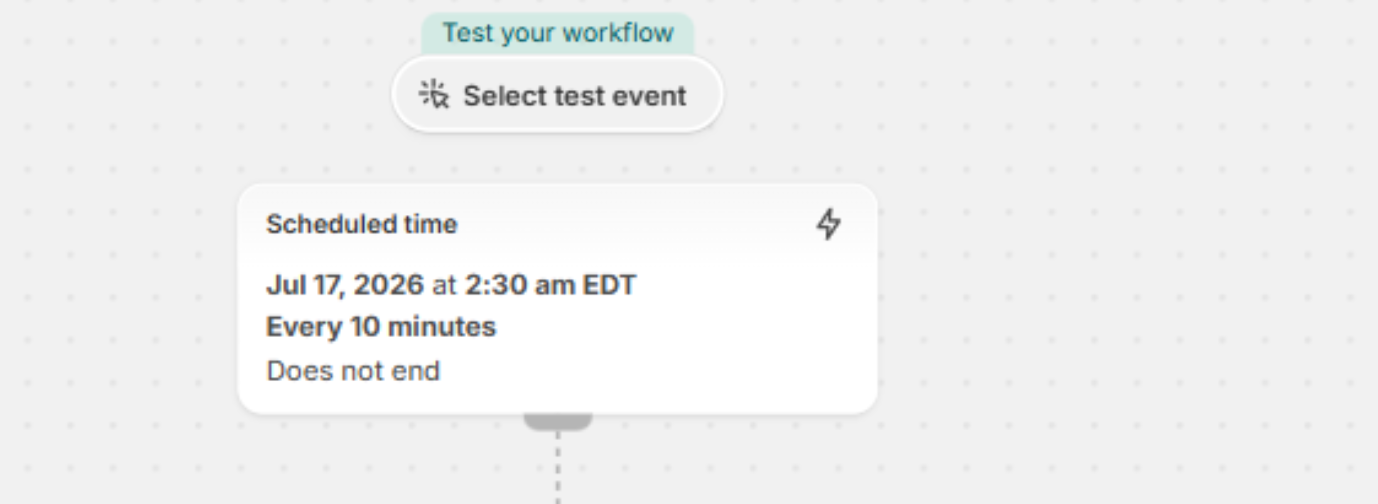
2. Set the first run for a few minutes in the future (to give yourself time to finish building the workflow).
3. Set the workflow to **repeat every 10 minutes** (the minimum interval).
{% hint style="info" %}
**Why repeat every 10 minutes?**
Shopify Flow can only retrieve up to **100 fulfillment orders** per execution. Repeating the workflow allows it to gradually process all held orders.
{% endhint %}
### Step 4: Get Held Fulfillment Orders
Add the action:
**Shopify → Get fulfillment order data**
Configure it as follows:
* **Sort by:** ID (Ascending)
* **Maximum fulfillment orders:** 100
* **Query:** Held fulfillment orders
### Step 5: Loop Through the Orders
Add:
**Flow → For each**
* **List:** Returned data from **Get fulfilment order data**
This will process each fulfilment order individually.
### Step 6: Filter for Your Preorder Product(s)
Inside the **For each** loop, add an **If** condition.
Check:
```
Fulfillment Order Item→ Line Items→ Line Item→ Product→ ID
```
Condition:
* **Product ID is at least one of**
* Product ID 1
* Product ID 2
* Product ID 3
* (Add as many preorder product IDs as needed.)
This ensures only fulfillment orders containing your preorder products are released.
### Step 7: Release the Hold
Inside the **If** condition, add:
**Shopify → Release fulfillment order holds**
This removes the fulfillment hold from matching orders.
### Step 8: Run the Workflow
1. Turn the workflow **On**.
2. Let it run until all held orders have been processed.
3. Turn the workflow **Off** once finished.
For example, a store with **400+ held preorder orders** allowed the workflow to run for about **one hour**, automatically releasing all fulfillment holds without any manual work.
***
### Notes & Limitations
* Shopify Flow processes **up to 100 fulfillment orders per execution**.
* Running the workflow every **10 minutes** allows larger batches to be processed automatically.
* Filtering by **Product ID** ensures only the intended preorder products are affected.
* This is especially useful when inventory arrives and you need to release hundreds of held fulfillment orders at once.