# Can’t See the “Back in Stock” Button?
#### 1. Make sure the app is enabled
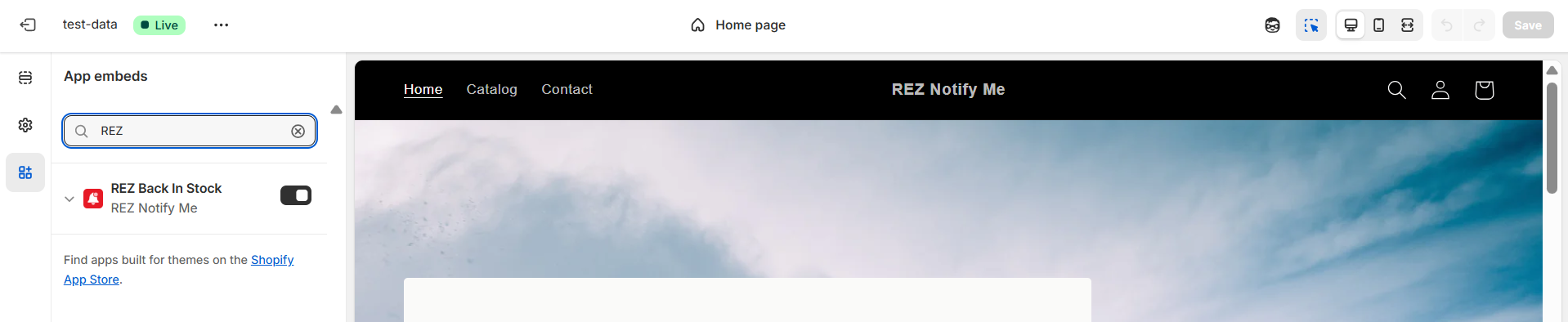
The preorder feature will not work if the app is not enabled in your theme.
**How to check:** Follow [the instructions to **enable the app embed / app block** in your theme](https://rez-notify-me.gitbook.io/rez-notify-me/getting-started/how-to-make-the-app-work-on-the-online-store)
***
#### 2. Make sure the “Notify Me” feature is enabled
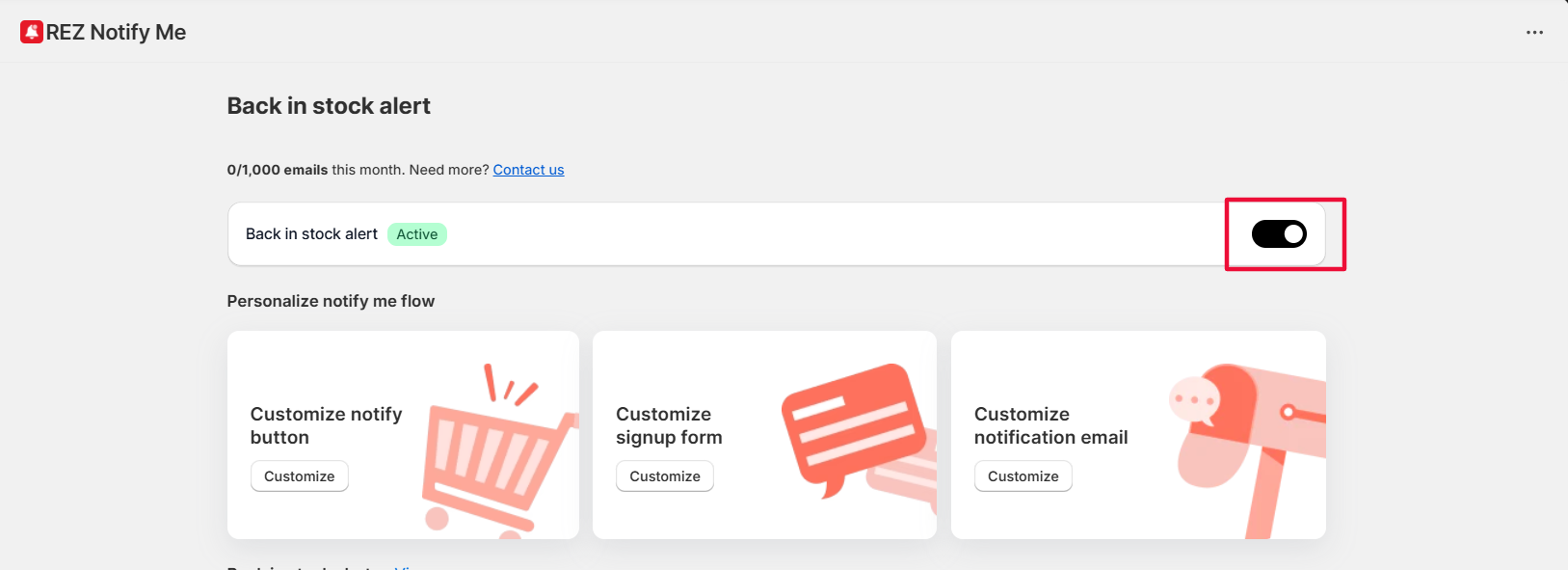
Even if the app is enabled, the **Notify Me** feature must be turned on.
**How to check:**
* Go to **Back in Stock**
* Make sure the feature toggle is **Enabled**
***
#### 3. Make sure the product is selected in your campaign
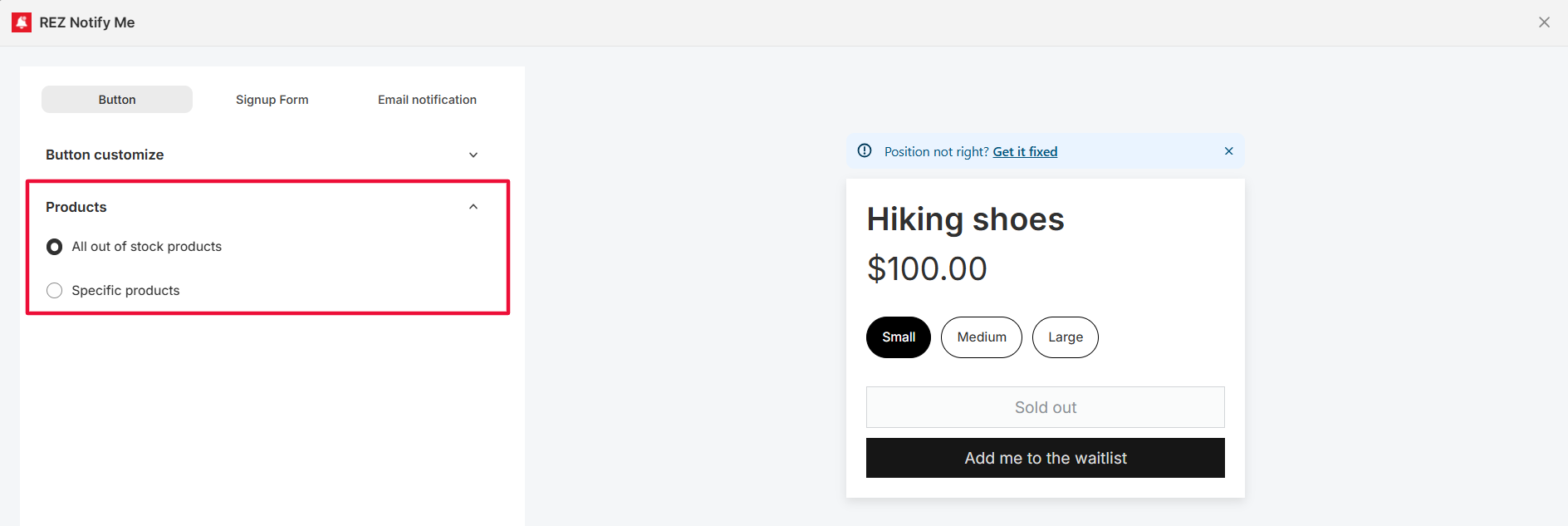
The button will only appear on products that are included in your Back in Stock setup.
**How to check:**
* Go to **customize notify button → Back in Stock**
* Review the **Products**
* Make sure the product you’re testing is included
***
#### 4. Check your product inventory settings
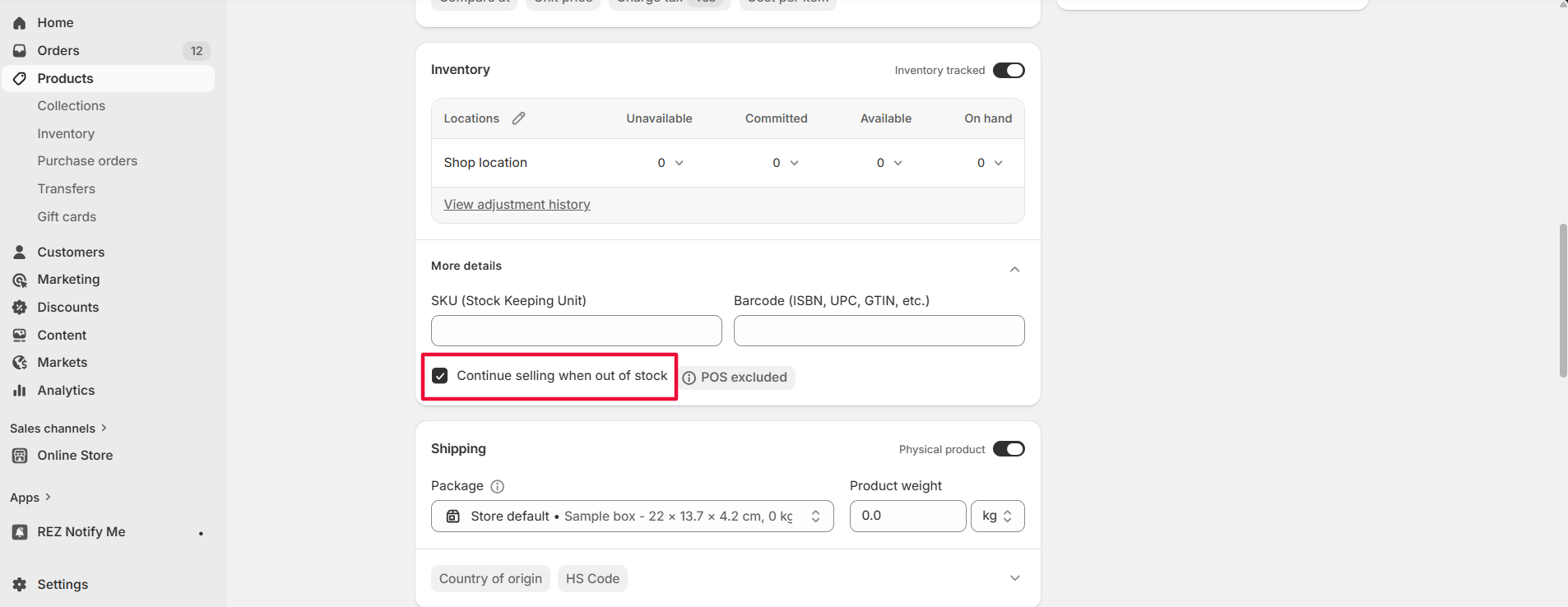
If your product is set to **“Continue selling when out of stock”**, Shopify still treats it as available, so the Back in Stock button may not appear.
**How to check:**
* Go to the product in Shopify Admin
* Open the **Inventory** section
* Turn off **“Continue selling when out of stock”** if you want the Back in Stock button to show when inventory reaches 0
***
#### Still not working?
If you’ve checked all the steps above and the preorder button is still not showing, please [contact our support team](https://go.crisp.chat/chat/embed/?_sc=ODU2NDY1MiMxMjgyMDg%3D\&website_id=ef20beba-6c17-47d6-aca9-06e164607454) and share:
* The product URL
We’ll help you check it out as soon as possible. 🙌